
Volkswagen RCD 210, RCD 310 Radio Code Generator
Fast online service to unlock your Volkswagen RCD radio using just the i serial number —instant code recovery, no cables required.


How It Works
Get your radio unlock code in 3 simple steps
(Click on the slider to pause autoplay)
How to locate the serial number on your RCD Radio unit
To recover your code, you will need the unique serial number printed or engraved on the metal casing of the unit. Follow these simple steps:
- Partially remove the unit: Carefully insert extraction keys (or matching release tools) into the slots on the front panel corners to release the internal clips, then slide the radio slightly out of the dashboard.
- You do not need to disconnect any wiring plugs or power cables.
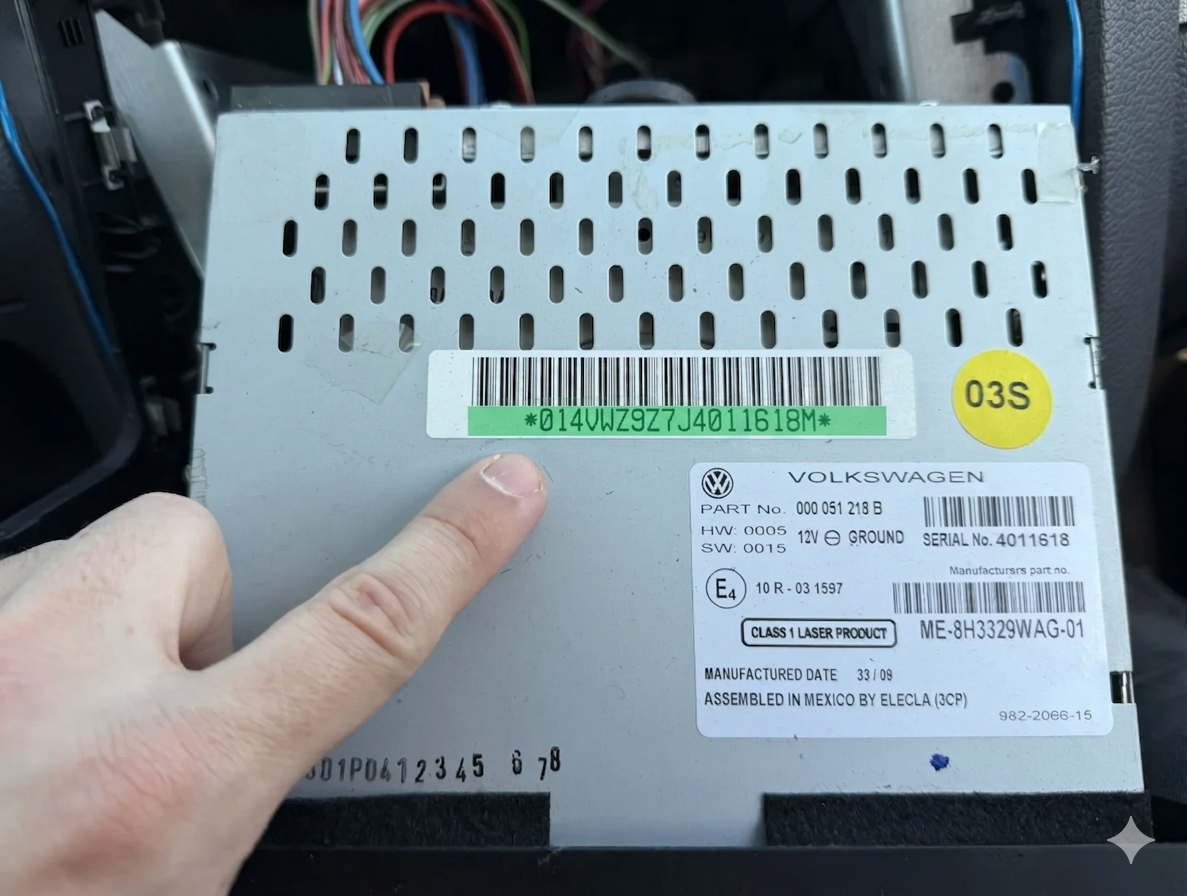
- Locate the label: Check the top, side, or bottom metal casing of the unit to find the official Volkswagen white sticker label.
Identify your serial number: Look for the 14-character serial number stamped or printed starting with VWZ (e.g., VWZAZ2K1234567 or VWZ1Z2N9876543).
Here is a quick TUTORIAL to help you extract your unit safely without damaging the dashboard trim. On some RCD 210 and RCD 310 models, the serial number might be followed by an extra letter suffix at the end—make sure to include or check it if required, or focus on the main string.
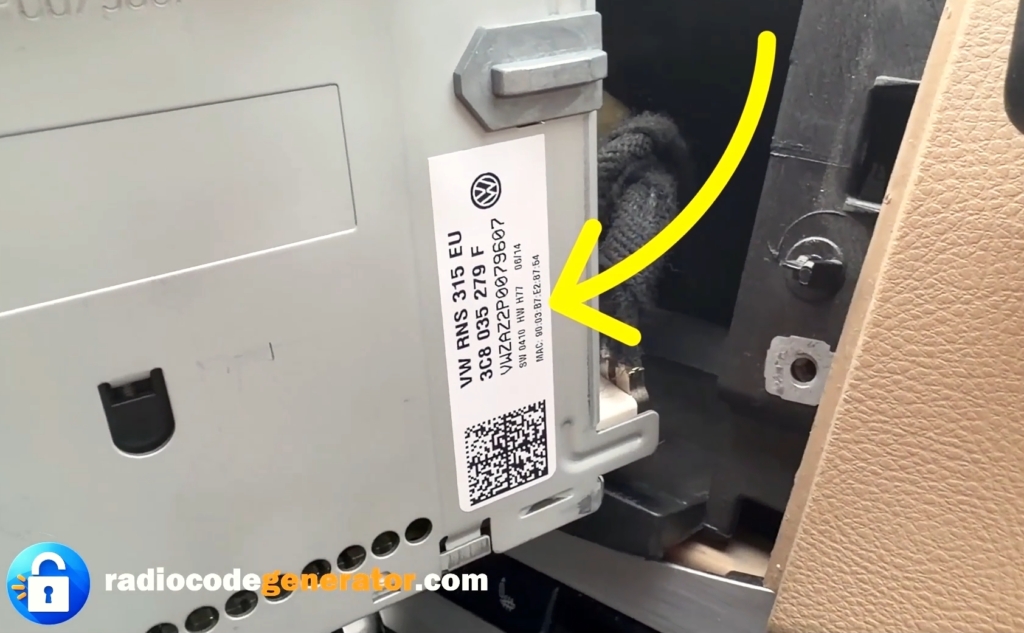
Pay close attention when reading the characters to avoid confusing a lowercase letter ‘l’ with an uppercase ‘I’ or the number ‘1’, as well as the letter ‘O’ with the number ‘0’.
Examples of common serial numbers you might find:
VWZ4Z2H5678901(Technisat / Blaupunkt variants)VWZAZ1L9876543(Delphi variants)
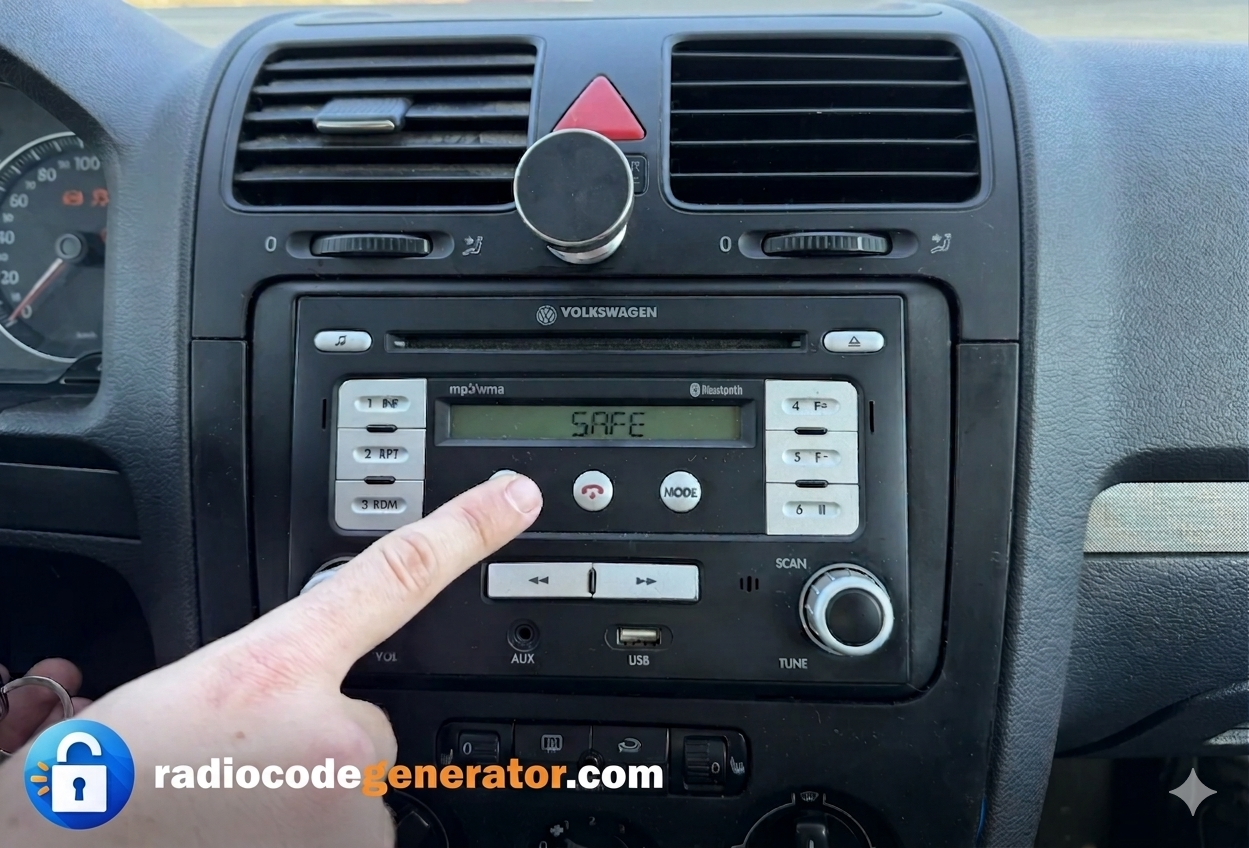
If your display shows ‘SAFE’ or prompts you with ‘1000’, use preset buttons 1 through 4 on your radio panel to cycle through and enter your individual digits, then press and hold the correct confirmation button (usually the arrow/OK or the right tuning knob depending on the unit version) to unlock it successfully.
How To Enter The Unlock Code For VW RCD 210, 310
- After turning on your audio system, make sure that your screen displays ‘SAFE’ or prompts you with ‘1000’ for code entry.
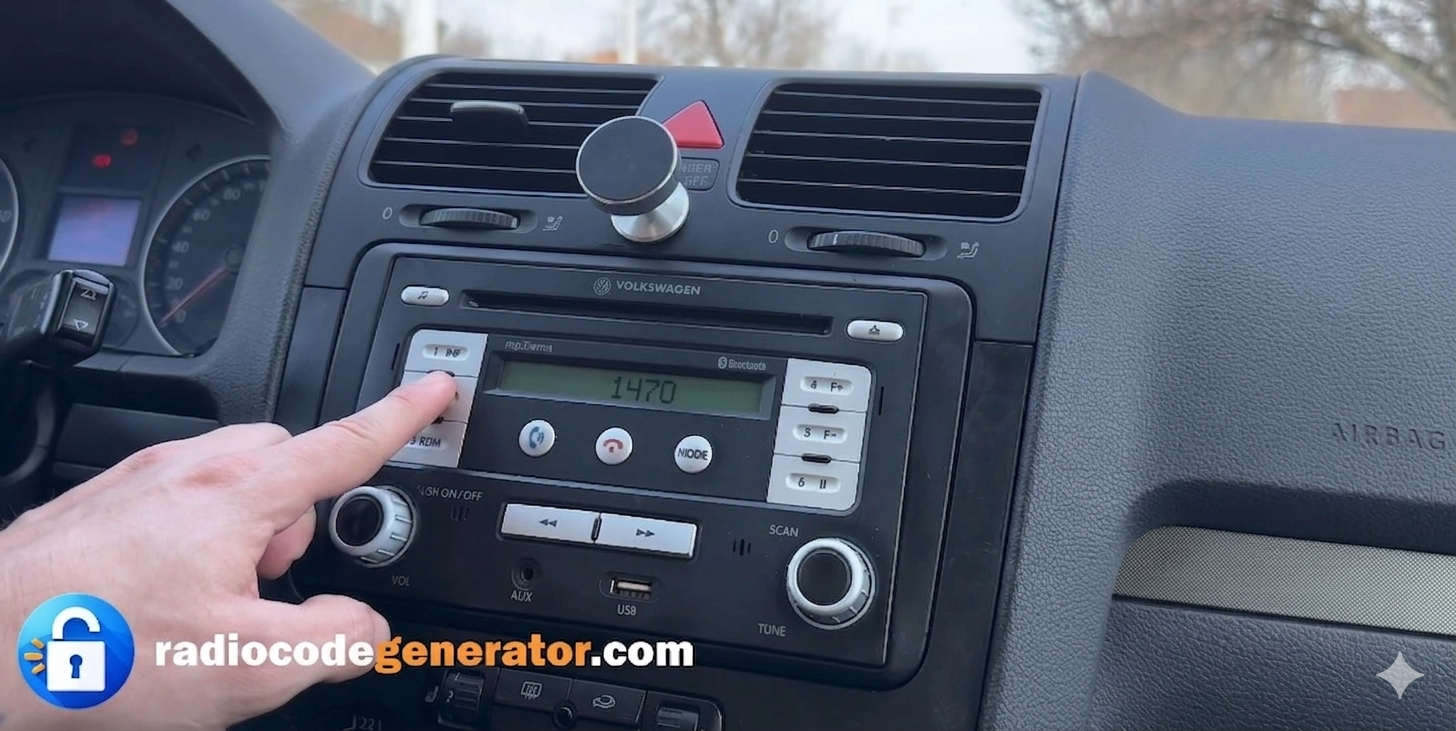
- Use the preset buttons (1 to 4) located on the front panel of the radio to input your unique 4-digit unlock code.
- Press button 1 repeatedly to select the first digit, button 2 for the second digit, button 3 for the third, and button 4 for the final digit.
- Double-check the screen display to ensure the numbers match your received unlock code before confirming.
- Once the full code is displayed on the screen, press and hold the Right Arrow / OK button (or press down on the right tuning knob, depending on your exact unit version) to save it and instantly unlock your system.
Got Questions Or Need Assistance?
If you face any issues entering your code, if your unit remains locked after multiple attempts, or if you need further help with your serial number, don’t worry—simply CONTACT us and we will sort it out for you promptly.
For additional tips, troubleshooting advice on wait times between incorrect code entries, and step-by-step guides on Volkswagen car audio systems, feel free to explore our FAQ section or browse our latest articles on the BLOG page!